ATコマンドを利用し、Systemアカウントでプログラムを起動する方法。
コマンドプロンプトにて、以下のコマンドを実行する。
at xx:xx(直近の時間) /interactive cmd.exe
atコマンドが成功すると、systemアカウントが起動したコマンドプロンプトが起動される。
起動したコマンドプロンプトにて実行したいコマンドを実行すると、Systemアカウントで実行できる。
Shellを利用し、WindowsXP、Vistaでファイル圧縮を行います。
例では、”C:\test.txt” を”C:\test.zip” に圧縮しています。
Option Explicit


  MakeZip "C:\test.txt", "C:\test.zip"

Sub MakeZip(STR_TargetFile ,STR_SaveFile)
  Dim OBJ_FSO
  Dim OBJ_ZIP
  Dim OBJ_Shell
  Dim ARR_Hex
  Dim STR_Temp
  Dim i

  Set OBJ_FSO = CreateObject("Scripting.FileSystemObject")
  ARR_Hex = Array(80, 75, 5, 6, 0, 0, 0, 0, 0, 0, 0, 0, 0, 0, 0, 0, 0, 0, 0, 0, 0, 0)

  For i = 0 To UBound(ARR_Hex)

    STR_Temp = STR_Temp & Chr(ARR_Hex(i))

  Next

  Set OBJ_Zip = OBJ_FSO.CreateTextFile(STR_SaveFile, True)
  OBJ_Zip.Write STR_Temp
  OBJ_Zip.Close

  Set OBJ_Shell = CreateObject("Shell.Application")
  OBJ_Shell.NameSpace(STR_SaveFile).CopyHere(STR_TargetFile)

  WScript.Sleep 3000
  Set OBJ_Shell = Nothing
End Sub
Scriptのダウンロードは こちら です。
Winhttpでhttpリクエストを行い、Cドライブ直下に”test.gif”というファイルにリクエスト結果を保存する例です。
Option Explicit

  Const OpenFileForReading   = 1
  Const OpenFileForWriting   = 2
  Const OpenFileForAppending = 8

  Const adTypeBinary = 1 'Binary
  Const adTypeText   = 2 'Text

  Const adSaveCreateNotExist  = 1
  Const adSaveCreateOverWrite = 2
  HTTPDownload "http://dragon-ark.com/wp-content/uploads/2008/12/20081231_1-300x166.gif" , "c:\test.gif"

 Sub HTTPDownload(ByVal STR_URL, ByVal STR_Path )
    Dim OBJ_ADO
    Dim OBJ_HTTP
    Dim STR_Temp

    Set OBJ_ADO  = CreateObject("ADODB.Stream")

    OBJ_ADO.Type = adTypeBinary
    OBJ_ADO.Open
    OBJ_ADO.Position = 0

    Set OBJ_HTTP = CreateObject("WinHttp.WinHttpRequest.5.1")

    OBJ_HTTP.Open "GET", STR_URL, False
    OBJ_HTTP.Send

    STR_Temp = OBJ_HTTP.ResponseBody
    OBJ_ADO.Write STR_Temp
    OBJ_ADO.SaveToFile STR_Path, adSaveCreateNotExist
    OBJ_ADO.Close
End Sub
Scriptのダウンロードは こちら です。
Winhttpでhttpリクエストを行い、Cドライブ直下に”test.txt”というファイルにリクエスト結果を保存する例です。
Option Explicit

  Const OpenFileForReading   = 1
  Const OpenFileForWriting   = 2
  Const OpenFileForAppending = 8

  HTTPDownload "http://google.co.jp/index.html" , "c:\text.txt"
Sub HTTPDownload(ByVal STR_URL, ByVal STR_Path )
    Dim OBJ_File
    Dim OBJ_FSO
    Dim OBJ_HTTP

    Set OBJ_FSO  = CreateObject("Scripting.FileSystemObject")
    Set OBJ_File = OBJ_FSO.OpenTextFile(STR_Path, OpenFileForWriting, True)
    Set OBJ_HTTP = CreateObject("WinHttp.WinHttpRequest.5.1")

    OBJ_HTTP.Open "GET", STR_URL, False
    OBJ_HTTP.Send

    OBJ_File.Write  OBJ_HTTP.ResponseText
    OBJ_File.Close( )
End Sub
Scriptのダウンロードは こちら です。
IEを起動し、googleを開く例です。
Option Explicit

  Dim OBJ_Shell

  Set OBJ_Shell = CreateObject("Shell.Application")
  OBJ_Shell.Windows.Item.Navigate "<a href="http://www.google.co.jp/">http://www.google.co.jp/</a>"
Scriptのダウンロードは こちら です。
昨年は、人生の転機があったりと、忙しい一年でした。
今年も、健康に過ごせますように…
と、いってるそばからなんだか風邪気味です。
明日は初詣に行く予定なので、薬を飲んで早めに寝ます。
Option Explicit
  Dim OBJ_FSO
  Dim OBJ_Browser
  Dim STR_ProgramName

  Set OBJ_FSO = CreateObject("Scripting.FileSystemObject")

  For Each OBJ_Browser In CreateObject("Shell.Application").Windows

    STR_ProgramName = OBJ_FSO.GetFileName(OBJ_Browser.FullName)
    If LCase(STR_ProgramName) = "iexplore.exe" Then

      WScript.Echo OBJ_Browser.LocationURL

    End If

  Next
Scriptのダウンロードは こちら です。
# pkg info SUNWxvnc
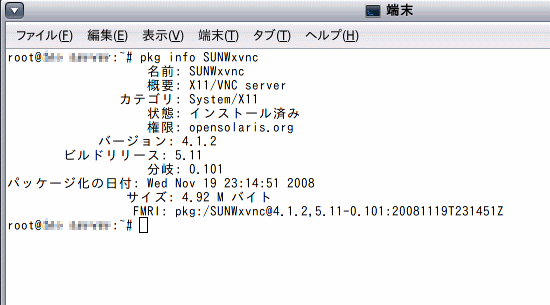
※インストールされていない場合は、パッケージマネージャから
インストールを実施する。
2. 「/etc/X11/gdm/custom.conf」 を 編集する。
# cd /etc/X11/gdm
# vi custom.conf
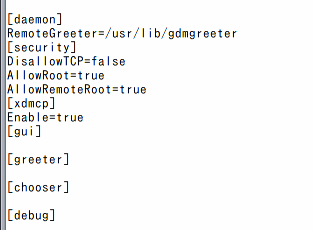
3. サービスの有効化を行う
# svcadm enable xvnc-inetd
# svcs xvnc-inetd

4. VNCビューアより、接続を行う
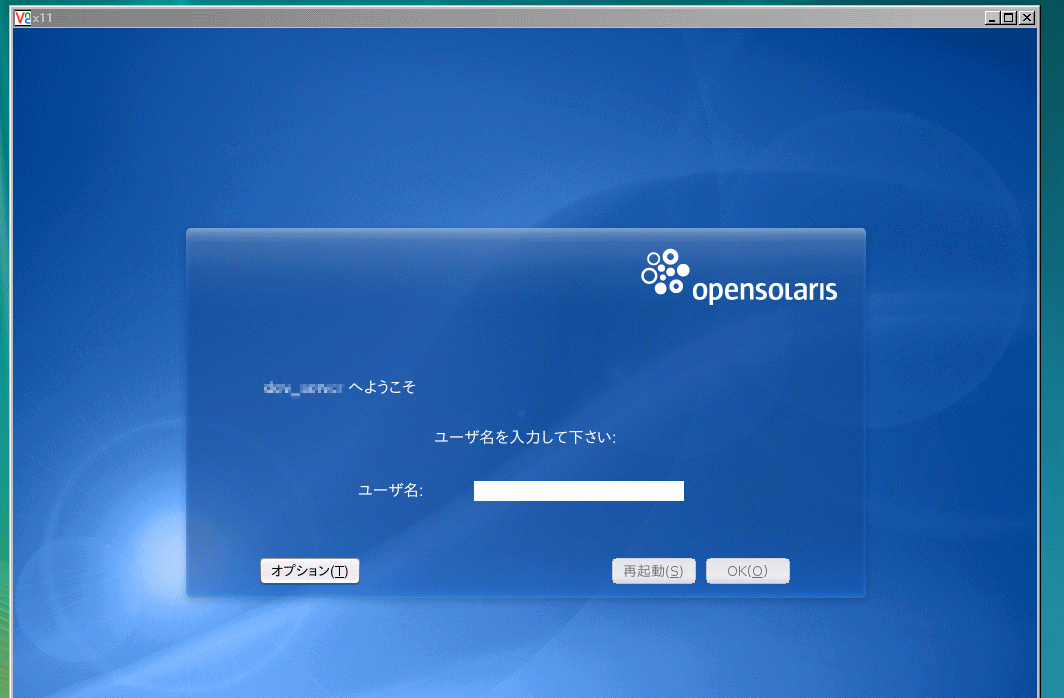
※ 接続出来ない場合は、以下のコマンドを試す。
(サービスの状態が mentenance になる場合がある)
# svcadm disable xvnc-inetd gdm
# svcadm enable xvnc-inetd gdm
O’Reilly Japanから発売される DNS & BIND 第5版 です。
第4版はかなり読み込みました。当時は BIND 4、BIND 8が多く使われていました。
購入予定です。